
Gratuated Blur Effect For Photoshop
|
Members
|
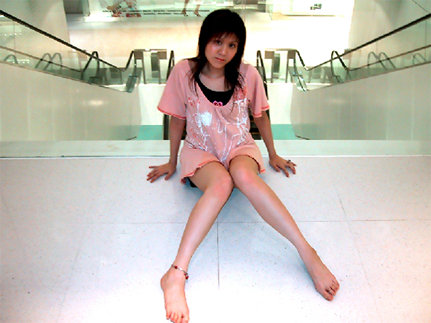 Model and original photo courtesy of Katie Cheng © 2004 1) Using the magnetic lasso (or a small hard brush in Quick Mask mode), select the subject you wish to keep in sharp focus. I've chosen this great photo of "Snowmask" as an example. When doing this kind of effect, I recommend adding a soft edge to the selection by using Select>Feather with a value of 2-3 pixels. (IMG:http://www.idigitalemotion.com/tutorials/guest/blur/2.jpg) 2) Switch you view mode to the Channels tab and click the Save Selection as Channel, which is the second icon at the bottom of the Channels palette. This saves your "knockout" mask for any other effects you may want to add later. 3) Turn off the eyeball switches in the RGB channels to view the selected mask in grayscale. (I've labelled it "soft knockout" in the screenshot below, which some would say describes Snowie rather well...)  ...anyways, moving on... ...anyways, moving on...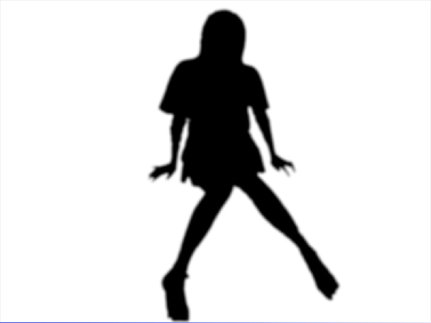 4) Invert your selection by holding Shift-Ctrl-I, then click the "Save Selection as Channel" icon again; this will create a 2nd alpha channel which will be used for your gradient effect. 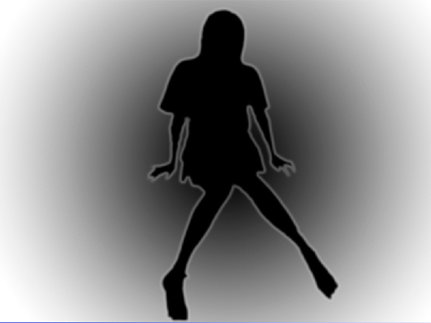 5) Using the gradient tool, create a black-to-white transition of your choice on this new alpha channel. Keep in mind that anything left black will be unaffected white will be a full effect, and grays will be somewhere in the midrange. 6) Deselect all, then with this channel still highlighted, click the "Load Channel as Selection"icon, which is thefirst one at the bottom of the palette...turn off the eyeball switches for the alpha channel and turn on the RGB channels, then go back into Layers mode and the original image. 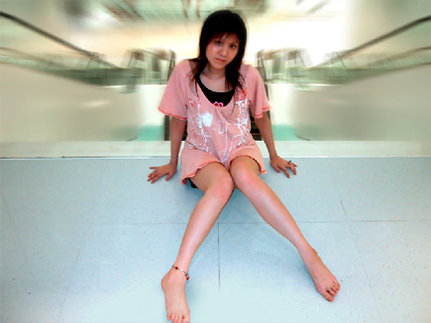 7) The "marching ants" won't show your true selection (in the case of this radial grad, it appears to be a large circle), but you'll see the gradual effect when you apply a filter. In this example, I've applied a Filter>Blur>Radial Blur/Zoom, but this effect will work for virtually any filter, including brush strokes and textures. You can see from the original how I added a few simple color tweaks to spice up this photo, but it's the gradual blur that really draws the viewer's focus into the intended subject. This post has been edited by Drifter182 on Aug 3 2004, 12:26 PM |
|
Members
|
..
Again with the neatness. xD |
|
Members
|
I like the model :-D
|
|
Members
|
Yeah, she's pretty. n.n;
|
|
Members
|
But her arms are really thin or is it just me
 *studies the second image* Hmm no I think her arms really ARE thin *studies the second image* Hmm no I think her arms really ARE thin  |
|
Members
|
It's called angled perspective.
|
|
Members
|
Even for a side view I think they're to thin <_<
|
See the originals, frozen in time: devilish-ro.org · hax-studios.net/devilish (2004)
Archive of the Devilish RO forums · preserved thanks to the Internet Archive.
These posts are archived from a community that was active more than 20 years ago (2004–2009). Views expressed are those of the original authors at the time of posting and may no longer reflect their present views. This archive is preserved for historical and reference purposes only.