
Sand Effect For Photoshop
|
Members
|
Step 1: Ok! Now the usual stuff. Create a new image, about 100 pixels larger than you actually want it. Make sure the 'Mode' is RGB.
Step 2: The usual - Filter : Render : Clouds, Filter : Render : Difference Clouds...Now got o Filter : Texture : Texturizer and use the following settings: Texture: Canvas Scaling: 100 Relief: 4 Light direction: Top And have the invert box Unchecked. Also go to Filter : Sharpen : Sharpen Edges Step 3: Go to Filter : Distort : Ocean Ripple and use the following settings: Ripple Size: 9 Ripple Magnitude: 9 Also go to Filter: Distort : Polar Co-Ordinates and use Polar to Rectangular Step 4: Go to Filter : Stylize : Wind and use the following settings: Method: Stagger Direction: From the Right Repeat that, but choose From the Left. Also duplicate the layer Step 5: Go to Edit - Transform - Flip Horizontal, and set the layer mode to Lighten! Merge the layers (Ctrl + E), and add some colour by pressing Ctrl + U, checking the Colorize box and moving the sliders! Now go to Image : Canvas Size and take away 100 pixels. Here is my finished result 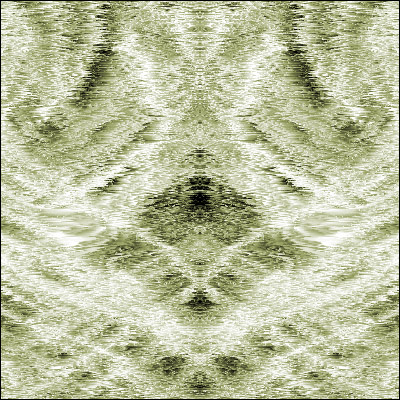 This post has been edited by Drifter182 on Aug 3 2004, 11:24 AM |
|
Members
|
IF you turn the image upside down it looks more like sand but I think it's just me o_O
|
|
Members
|
your right it does lol
|
See the originals, frozen in time: devilish-ro.org · hax-studios.net/devilish (2004)
Archive of the Devilish RO forums · preserved thanks to the Internet Archive.
These posts are archived from a community that was active more than 20 years ago (2004–2009). Views expressed are those of the original authors at the time of posting and may no longer reflect their present views. This archive is preserved for historical and reference purposes only.