
Light Explosion Effect For Photoshop
|
Members
|
1) Make a 400x400 document. Now press "D" on your keyboard to reset the foreground and background colors to black and white.
2) Now on the Background Layer apply Filter>Render>Difference Clouds. Press Cntrl+F 4 times (try and keep the light and dark clouds equal). 3) Now apply some Emboss, Filter>Stylize>Emboss and use these settings: 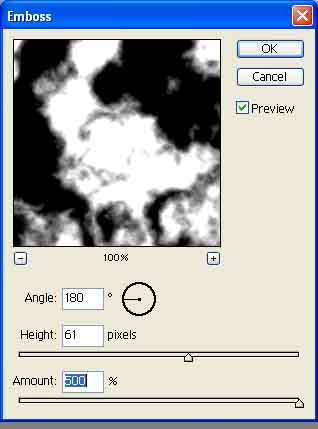 4) Now duplicate the background layer so we now have 2 layers the same. Select the duplicated layer and go to Filter>Blur>Motion Blur and use the following settings: (IMG:http://webdogpro.com/tutorials/screenshots/effects/lightexplosion/2.jpg) 5) Now select the Background layer (NOT THE ONE YOU DUPLICATED). Go to Filter>Stylize>Wind. Your image should now look like: (IMG:http://webdogpro.com/tutorials/screenshots/effects/lightexplosion/3.jpg) 6) Almost done! Now we just have to Merge the 2 layers and add color to them, this is how you go about merging the 2 layers together. First select the top layer and press CNTRL+E. After the layers are merged you can now apply the color. Press CNTRL+U to launch the Hue/Saturation window. Use these settings: (IMG:http://webdogpro.com/tutorials/screenshots/effects/lightexplosion/5.jpg) Now you are all done, your image should look similar to this, it wont be exact since the "Clouds" filter is generated and never usually the same. Check it out: (IMG:http://webdogpro.com/tutorials/screenshots/effects/lightexplosion/4.jpg) This post has been edited by Drifter182 on Aug 3 2004, 12:26 PM |
See the originals, frozen in time: devilish-ro.org · hax-studios.net/devilish (2004)
Archive of the Devilish RO forums · preserved thanks to the Internet Archive.
These posts are archived from a community that was active more than 20 years ago (2004–2009). Views expressed are those of the original authors at the time of posting and may no longer reflect their present views. This archive is preserved for historical and reference purposes only.